Custom fields on Action items.
Tag tasks and follow-ups with the same custom fields you use on incidents, then filter, report, and automate on them.

On this page
Custom fields can now be placed on tasks and follow-ups, drawing from the same custom field library you already use for incidents. Tag action items with dimensions like business unit, product area, cluster, or risk level, then filter, report, automate, and export on those values. Fields shared with the parent incident are pre-filled when the action item is created.
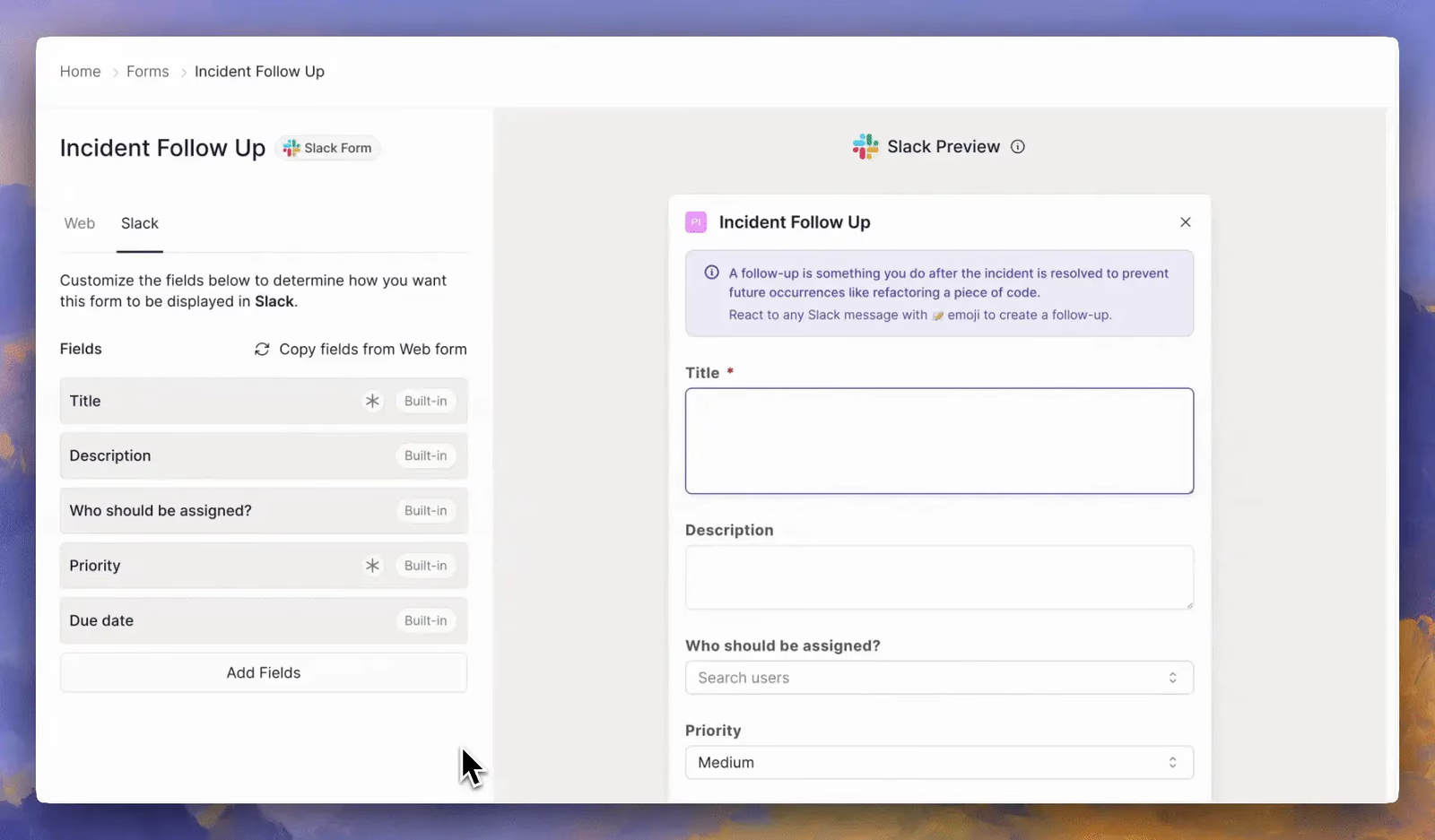
Adding custom fields to an incident follow up in Rootly.
Why it matters
Follow-up work is rarely captured well by title, owner, and due date alone. Security teams track control mappings, data classifications, and verification methods. Finance teams track vendor responsibility, budget owner, and accounts impacted. Until now that context either lived in a description as free text, or was copied by hand from the parent incident into every action item.
Custom fields turn follow-ups from a flat list of tasks into structured, reportable work, and let each team track the details that matter to them while still working from one shared incident process.
How it works
Two new configurable forms are available under Settings → Forms: Incident Task and Incident Follow Up, each with separate web and Slack versions. Place any fields from your custom field library, mark them required, or make them conditionally visible.
Once placed, those fields are collected everywhere action items are created or edited:
- Action item create and edit forms in the web app
- Slack dialogs for
/rootly task,/rootly followup, and/rootly action items, with required and conditional rules enforced - The Rootly agent in Slack
- The API, through
form_field_selectionson create and update andcustom_field_selectionson read
From there the values are usable across the platform. Follow-up assignment notifications in Slack show field values beneath the summary. The follow-ups list gains custom field columns, filters, and search. Dashboards can group and filter action item panels by task and follow-up field values. Workflows gain [CustomField] <Field Name> Updated triggers, conditions on field values, and an Update Action Item action for setting them. Field mappings carry through to ticketing exports for Jira, Linear, GitHub, and Asana, and values are included in incident webhook payloads and available in Liquid through action_item.custom_fields_by_slug.<slug>.
Getting started
Head to Settings → Forms and open the Incident Task or Incident Follow Up form to place your first fields. See the documentation to learn more.
What else shipped
Improvements
On-Call
- Escalation policy menus load faster, and you can now use regular expressions when searching escalation policies.
- SMS notifications now deliver to numbers in Taiwan, Hong Kong, and Macau without the verification step that was blocking them.
Incident Response
- You can now choose how dates are displayed in your own account — month first, day first, or ISO — under Account Settings → Customize.
- Incident permission sets can now control who sets incident sub-statuses, not just top-level statuses.
- The Anthropic integration now supports a higher maximum output token limit when you bring your own key.
- “Public description” is now called “Status page description,” and is available on every catalog entity type rather than only services and functionalities.
- You can now ask the Rootly agent in Slack to re-add the meeting bot to a call.
- Edge connectors can now be scoped to a team and managed by that team’s admins.
API & CLI
On-Call
- The
alert.updatedwebhook now fires an urgency-updated event when an alert’s urgency is changed manually.
Incident Response
POST /v1/incidentsnow returns a validation error for an over-long title instead of a 500.
Terraform
- The
rootly_catalog_propertyresource now acceptskind = "functionality", matching what the catalog itself supports. - The
statusform field kind is now available in the provider, so it can be used in conditional display and required rules.
Fixes
On-Call
- A saved alert view now keeps filtering the table while live mode streams in new alerts.
- The Ack button on a Slack alert message now goes away once the alert is resolved.
- Users without the Alert Sources read permission can now create alert routes, so team admins are no longer blocked from routing their own team’s alerts.
Incident Response
- A color set on a Send Slack Message action can now be cleared, removing the attachment indent.
- Custom yes/no field conditions are now evaluated on the web New Incident form.
- Severity now appears on the Slack form when moving an incident from triage to active.
- Communication template email bodies no longer accumulate blank lines and hidden spaces on every save.
- Workflow runs still open after the Google Doc template used by the action is changed or removed.
- The services dropdown on the incident form now sorts A–Z without separating uppercase and lowercase names.
- When retrospectives are renamed in advanced settings, the new name is now used consistently across the product.
- The Generate with AI button is now visible when the Resolve and Update Incident forms first open.
- Status page history now groups incidents by month using the page’s own timezone for logged-out visitors.
- Status page history now loads when an incident has no start time.
- Status page email unsubscribe now requires a confirmed action.
- Status page notifications are delivered faster for pages with large subscriber lists.
- Editing a published status page update now syncs the change to the linked Atlassian Statuspage incident.
Related changelogs
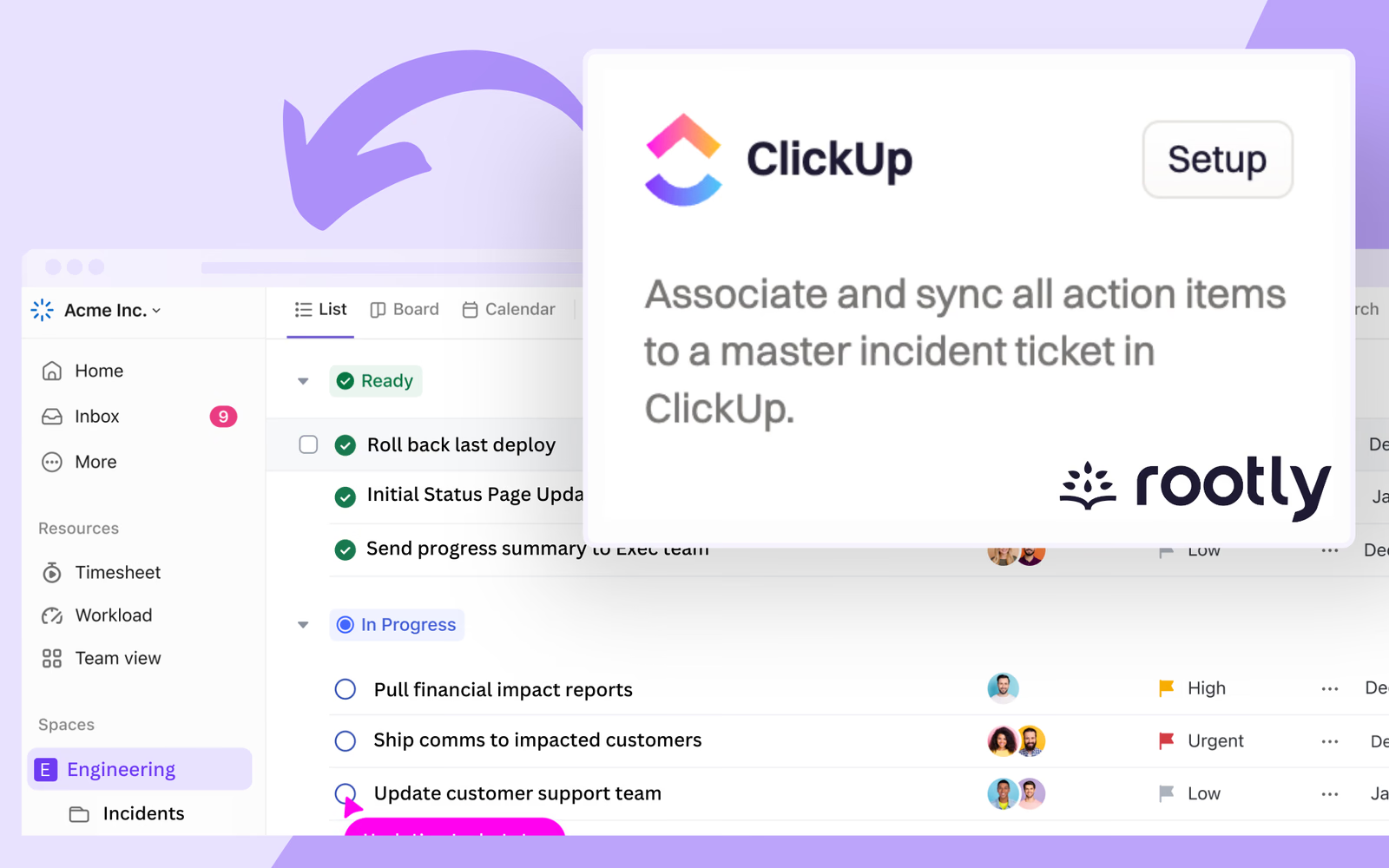
Introducing: Rootly x ClickUp! Our New Integration for Seamless Collaboration and Task-Tracking
We’re excited to introduce a brand new integration with ClickUp! ClickUp is a game-changing productivity tool that allows teams to centralize communications and tasks in one place, brainstorm ideas with Whiteboards, and draft plans together with collaborative Docs.
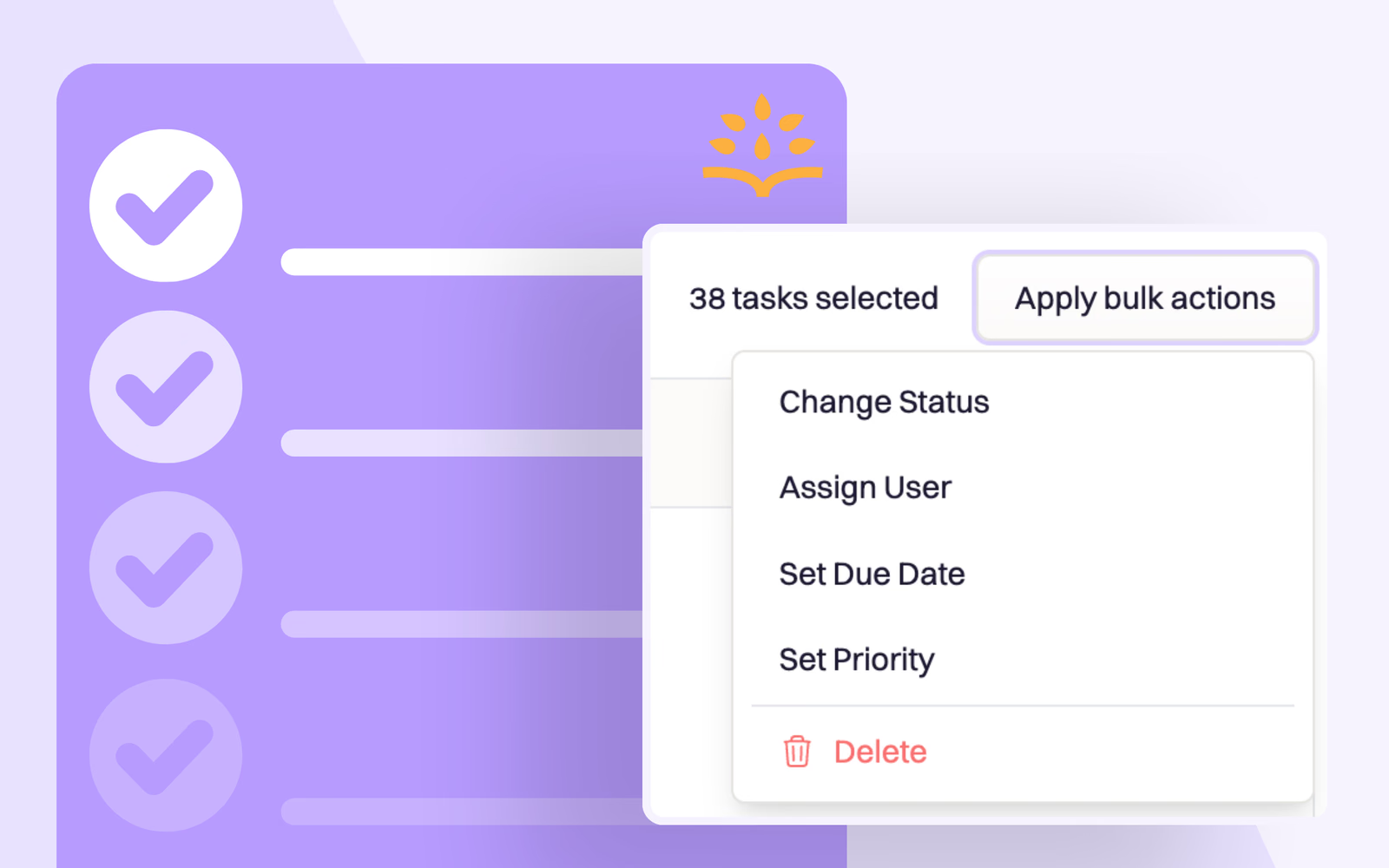
Bulk Edit Task and Follow-up Action Items
This week we’re highlighting the ability to edit action items (both tasks and follow-ups) in bulk, eliminating the tedious process of editing them one-by-one.
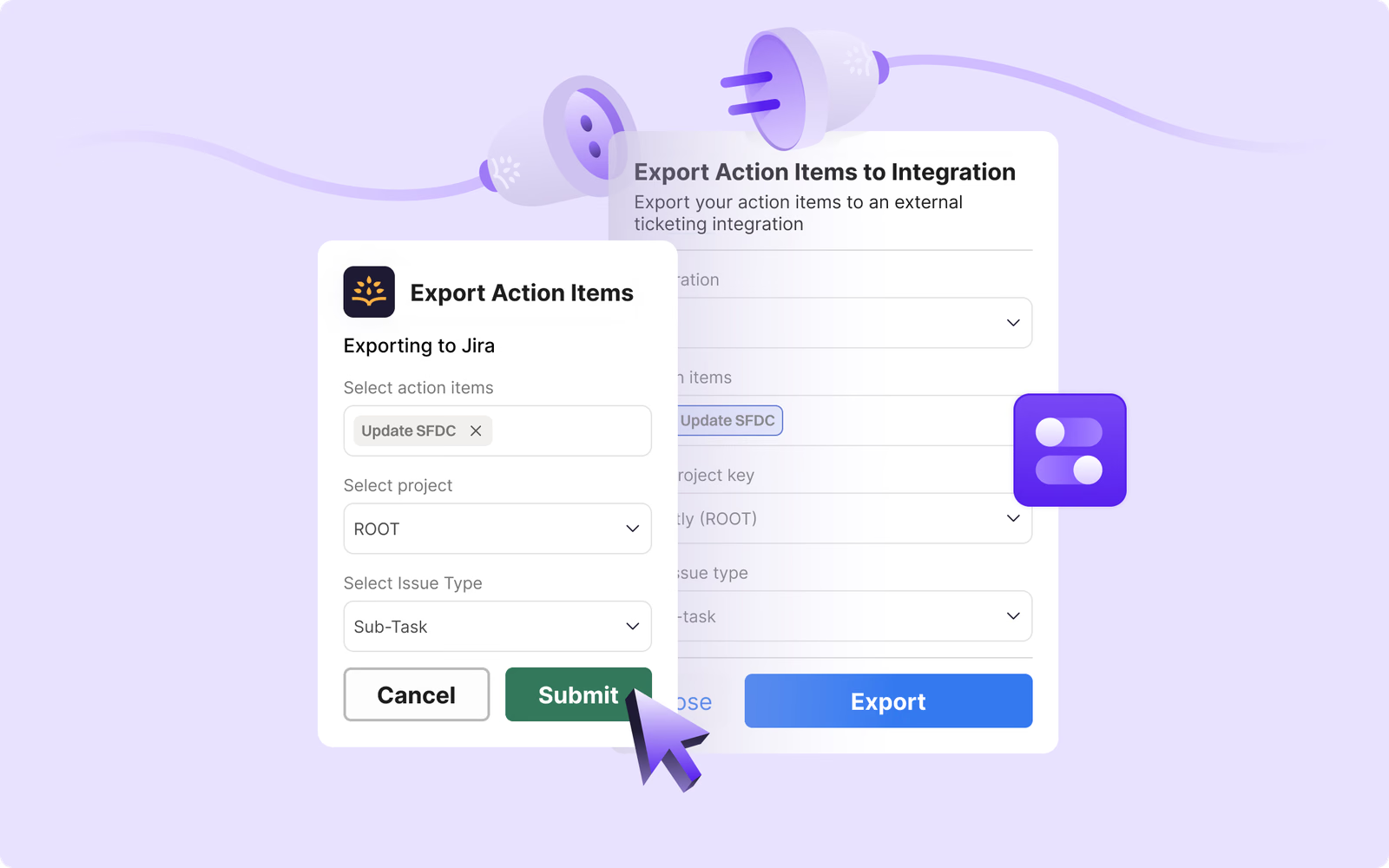
Manually Export Action Items to Ticketing Apps (Jira, Zendesk, Linear, and more)
📤 Manually Export Action Items to Ticketing Apps (Jira, Zendesk, Linear, and more) The ability to auto-create issue tickets from action items has already helped many Rootly users reduce their manual work and increase productivity. While it is easy to configure a workflow to create a ticket whenev