The Rootly Agent is mobile.
The Rootly Agent is now in the mobile app: catch up on an incident, gather context, and act, without opening a laptop.

On this page
The Rootly Agent now runs inside the Rootly mobile app. Tap into a live incident straight from the page you just got, and chat with Rootly the way you’d chat with a teammate. It reads your real incident data, answers in plain English, and suggests the next step after every answer.
Start with “catch me up” and you get a structured briefing in seconds: the problem, where things stand, the current theory, and what’s still open. Rootly assembles it from every touchpoint on the incident, including the Slack discussion and any recorded incident calls, so you’re not scrolling a thousand messages on a phone screen to find the one that matters. Because the answer is grounded in your Rootly data, it won’t invent a service or a commander.
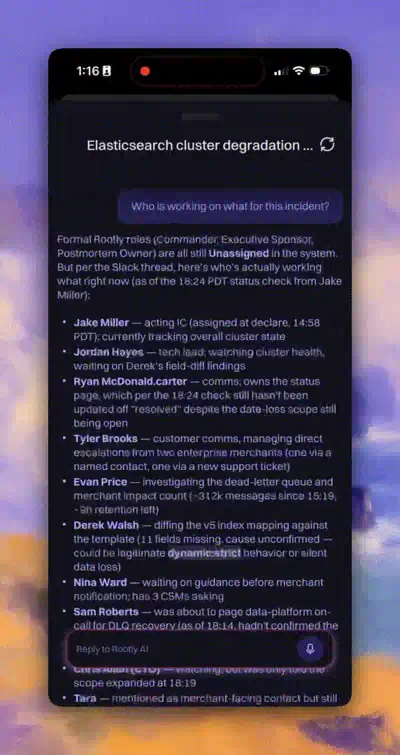
Rootly’s AI Agent helps you respond to your incident directly in the Rootly mobile app.
You can run the incident from the same chat. Assign an incident commander, change severity or status, update roles, page someone, or ask for a status page update written in customer-ready language. Anything high-stakes — paging, escalating, resolving — asks you to confirm before it fires. The agent can’t do anything you couldn’t do yourself in Rootly, and every change is attributed to you.
What’s included
- Catch-up briefings grounded in your incident data: the problem, current status, the working theory, and open questions.
- Context gathered across every incident touchpoint, including Slack discussions and recorded incident calls.
- Incident actions from chat: severity, status, title, roles, and incident commander.
- Paging and escalation with a confirmation step before anything fires, and every change attributed to you.
- Drafted status page updates in customer-ready language, with the workaround and explanation already in them.
- A suggested next step after every answer, so the incident keeps moving.
- Automated root cause analysis to get your started.
Why it matters
Incidents don’t wait until you’re at your desk. Being away from a laptop used to mean reading Slack on a phone and asking someone else to make the change. The mobile app now carries the same context and the same actions as the laptop you’re not sitting at.
Turn it on under AI & Agents in settings, then chat with Rootly from the mobile app to put it to work.
To get started and learn more check out the docs.
What else shipped
Improvements
On-Call
- The alert timeline now shows which audible or quiet rule decided how an alert paged.
- The audible/quiet editor now requires at least one condition per rule, so a blank rule can’t be saved.
Incident Response
- Edge connectors can now be scoped to a team and managed by that team’s admins.
- The Terraform provider now manages status page components, component groups, and page settings.
- You can now ask the Slack agent to add the meeting bot back to a call.
- A required yes/no field now counts toward the six-field limit that decides when a Slack task form opens in its own view.
API & CLI
On-Call
- Audible and quiet conditions on escalation paths can now be set through the public API and the Terraform provider.
- Pay report downloads now accept an API token, so a backend job can fetch them without a browser session.
Incident Response
- Workflow retry settings can now be set when a workflow is created and read back through the API.
Terraform
- Alert route urgency conditions are now returned by the API, so an apply no longer destroys and recreates every rule on the route.
Fixes
On-Call
- Preformatted text in an alert description now renders as a code block in Slack.
- Current and upcoming on-call badges on the schedules list now resolve shifts from nested schedules.
- The audible/quiet time window picker now accepts any minute, matching escalation path time restrictions.
Incident Response
- The row action menu on the edge connectors list now renders above the rows below it.
- The tooltip on an edge connector’s created date now appears in the right place.
- Custom yes/no field conditions are now evaluated on the Slack new incident form.
- A color set on a Slack message workflow action can now be cleared.
Related changelogs
Bring your Intune protection policies to Rootly mobile.
The Rootly mobile app now enforces Microsoft Intune app protection policies, with no full device enrollment required.
Rootly Mobile App 2.8.0
Rootly Mobile 2.8.0 redesigns Alert Details with swipe to acknowledge or resolve, full alert context in one view, and faster escalation.
Rootly Mobile App 2.7.0
Rootly Mobile 2.7.0 adds a redesigned home screen showing your current and upcoming on-call schedules, open coverage requests, and active alerts and incidents.