Coverage Requests Just Got Easier
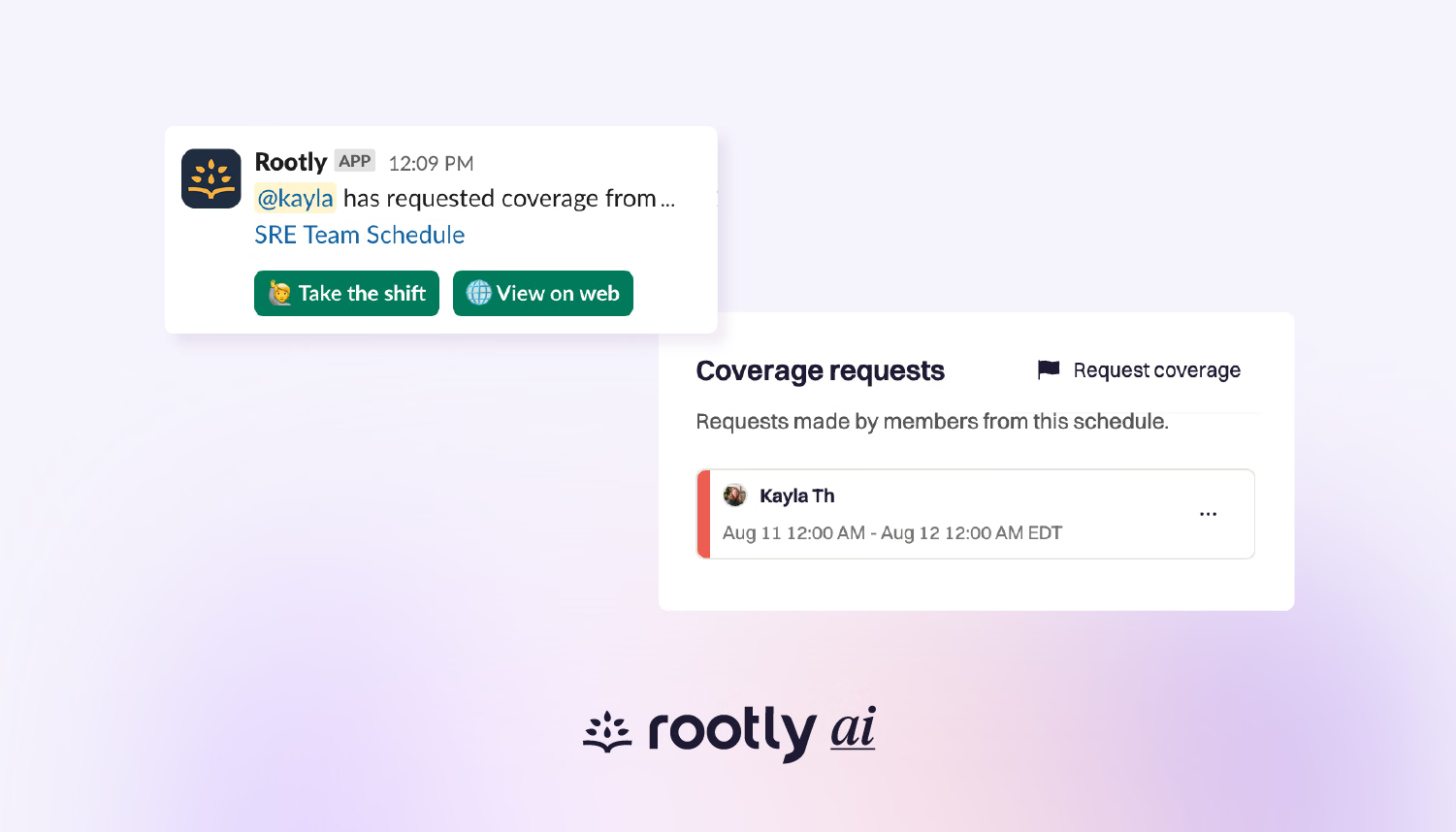
Easily request coverage through Slack and the web when you can’t take your scheduled shift (or part of it).
On this page
No matter how well you plan your on-call rotations, sometimes life just happens. But now you can easily request coverage through Slack and the web when you can’t take your scheduled shift (or part of it).
What’s new
Now on‑call responders can flag a shift they cannot work on Slack and the web and request coverage from the team. Rootly will automatically notify teammates and manages the reassignment for them.
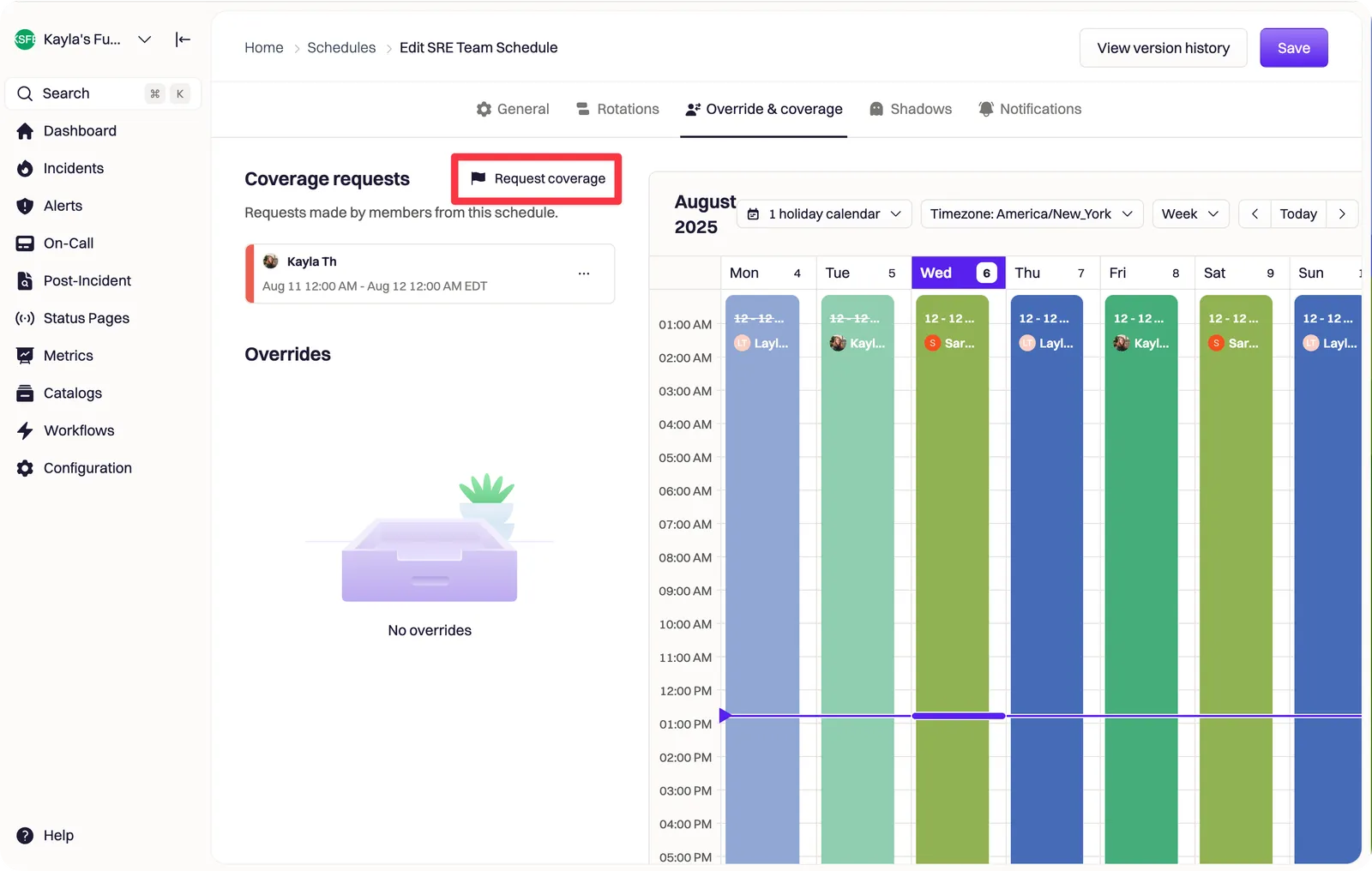
Coverage Requests can be submitted from the shift or schedule page in the web app or by running the /rootly override command in Slack. See the docs.
How it works
- When you can’t make a scheduled on‑call shift, create a Coverage Request. Rootly will notify everyone on the schedule and the corresponding Slack channel and prompts teammates to accept or ignore the request.
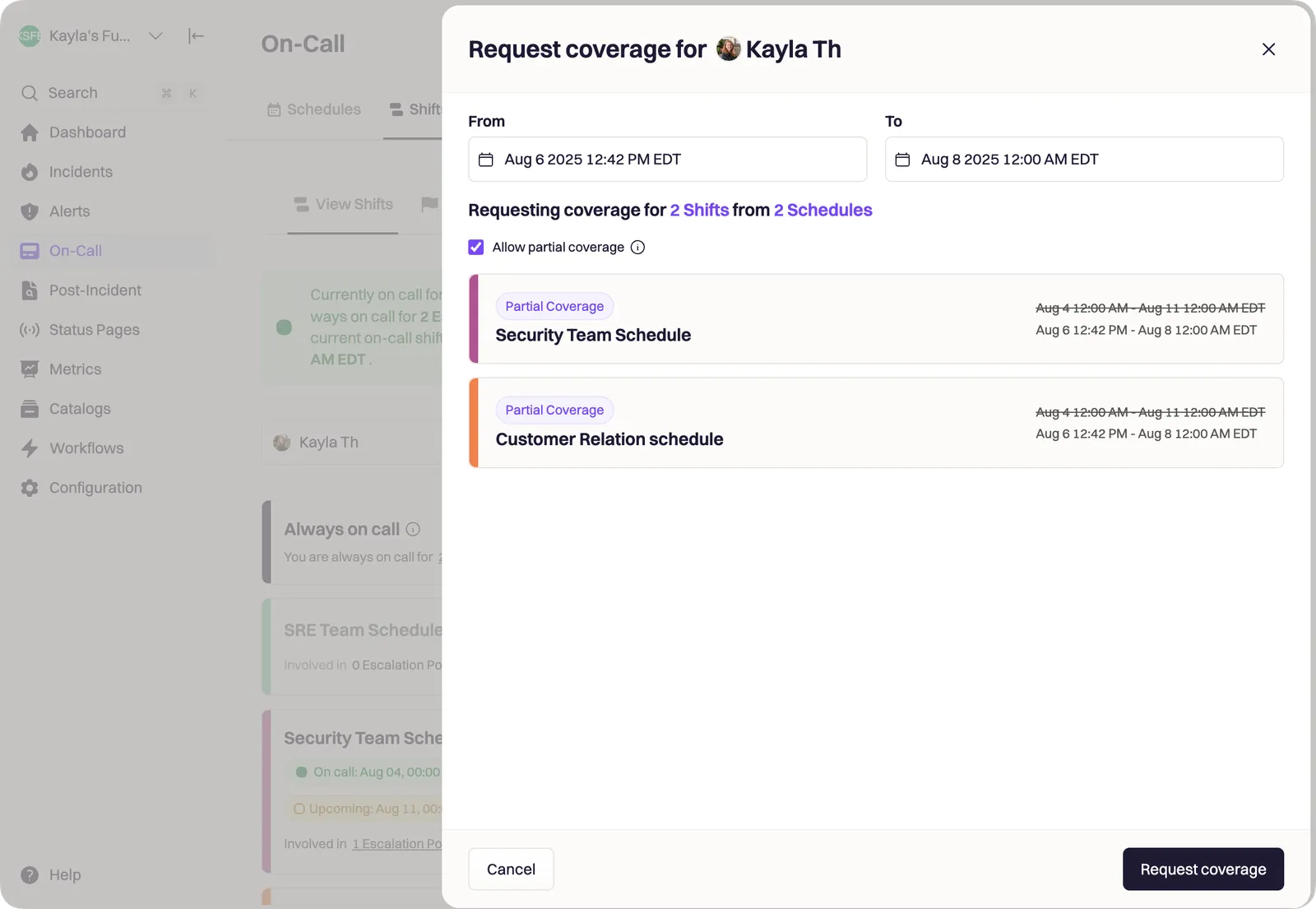
- Submitting a request on web: Go to the shift or schedule page and click Request Coverage. Choose the start and end times you can’t cover; Rootly gathers the shifts affected and notifies your teammates.
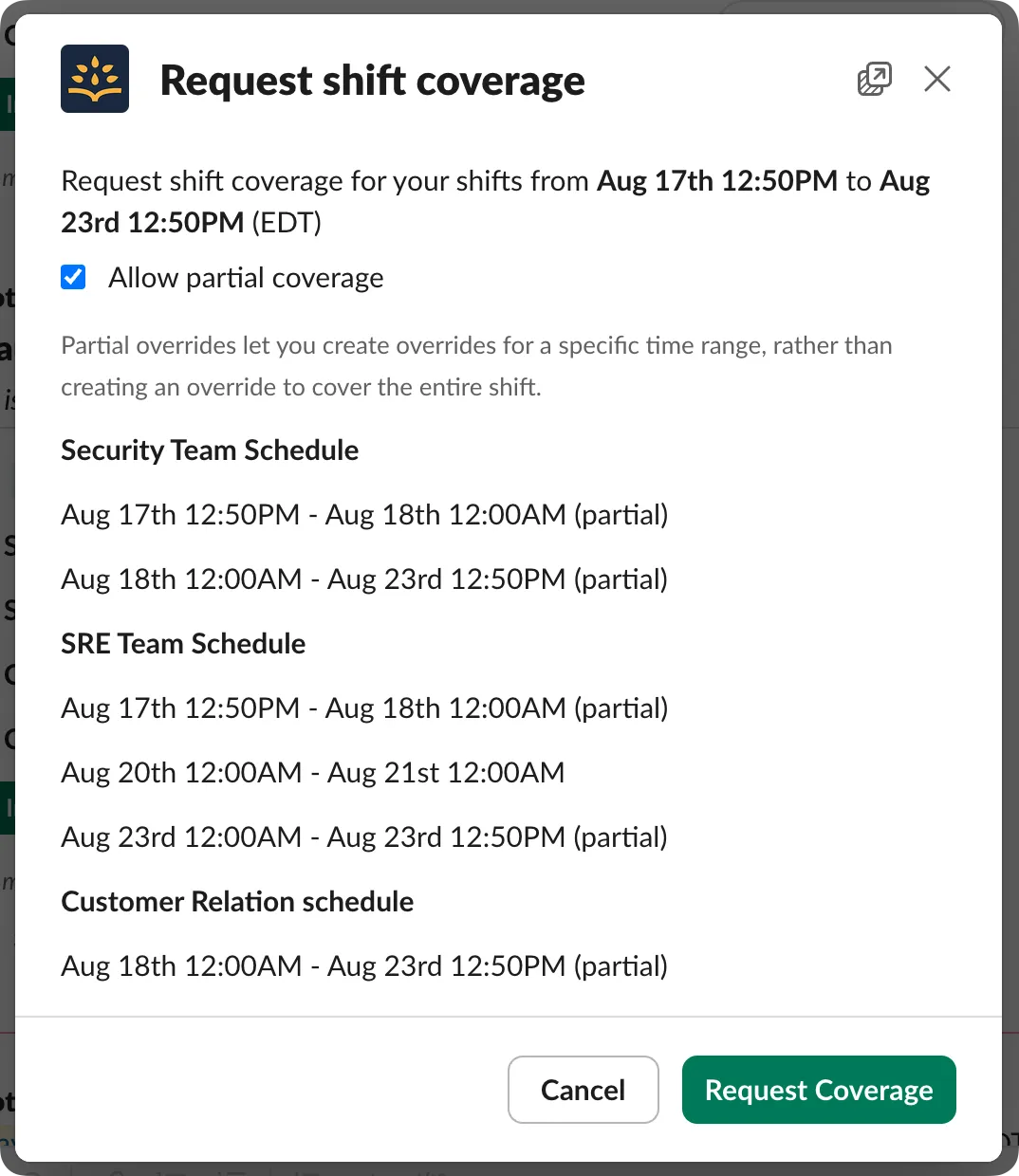
- Submitting on Slack: Use the
/rootly overridecommand, specify the time window, and Rootly will fetch your scheduled shifts for review. Click Request Coverage to send the notification.
- Managing requests: Your open coverage requests appear in the On‑Call → Shifts → Coverage Request tab. When someone accepts, the request disappears and the shift is automatically reassigned.
- Accepting requests: Anyone on the schedule can accept a request from the web app or directly from Slack. Only one person can accept; once accepted, Rootly notifies others that the shift is taken.
Key benefits
- Reduced coordination effort: no more pinging teammates individually; Rootly handles notifications and reassignment automatically.
- Maximised coverage: ensures shifts aren’t left uncovered by alerting all on‑call teammates and reassigning the shift to the first person who accepts.
- Integrated workflow: request, track and accept coverage directly from the web app or Slack.
- Transparency: responders can view and manage all pending coverage requests in one place.
Getting started
- Check permissions: you’ll need shift override permissions to create coverage requests.
- Submit a request:
- Web app: Navigate to On‑Call → Shifts or edit the relevant schedule. Click Request Coverage, set the unavailable time range and submit.
- Slack: Run
/rootly override, enter the times you can’t cover and choose Request Coverage to notify teammates.
- Manage your requests: View your open coverage requests in the Coverage Request tab of the Shifts page. Once someone accepts, Rootly automatically reassigns the shift and removes it from your list.
- Respond to requests: Teammates can accept coverage from the shift or schedule page in the web app or directly via Slack. Only one person can accept; Rootly prevents duplicate acceptances
What else shipped
On-Call
Announce Alerts to specific Team and Service Slack channels, improving communications with relevant stakeholders.
Metrics
Filter and Group metrics by custom fields and incident roles: each displayed as labeled columns with proper UI integration, full field type support (including Catalog), and clear fallback values for unassigned data.
Integrations
Added support for exporting to existing Coda docs via a new doc_id field, with full UI and API integration to streamline folder-based exports.
Join Zoom bridges during incidents without the Zoom host being on the call.
Related changelogs

Rootly On-call Health
On-Call Health is Rootly's open source project that uses incident, GitHub, and Slack data to spot early signs of on-call burnout and help rebalance rotations.
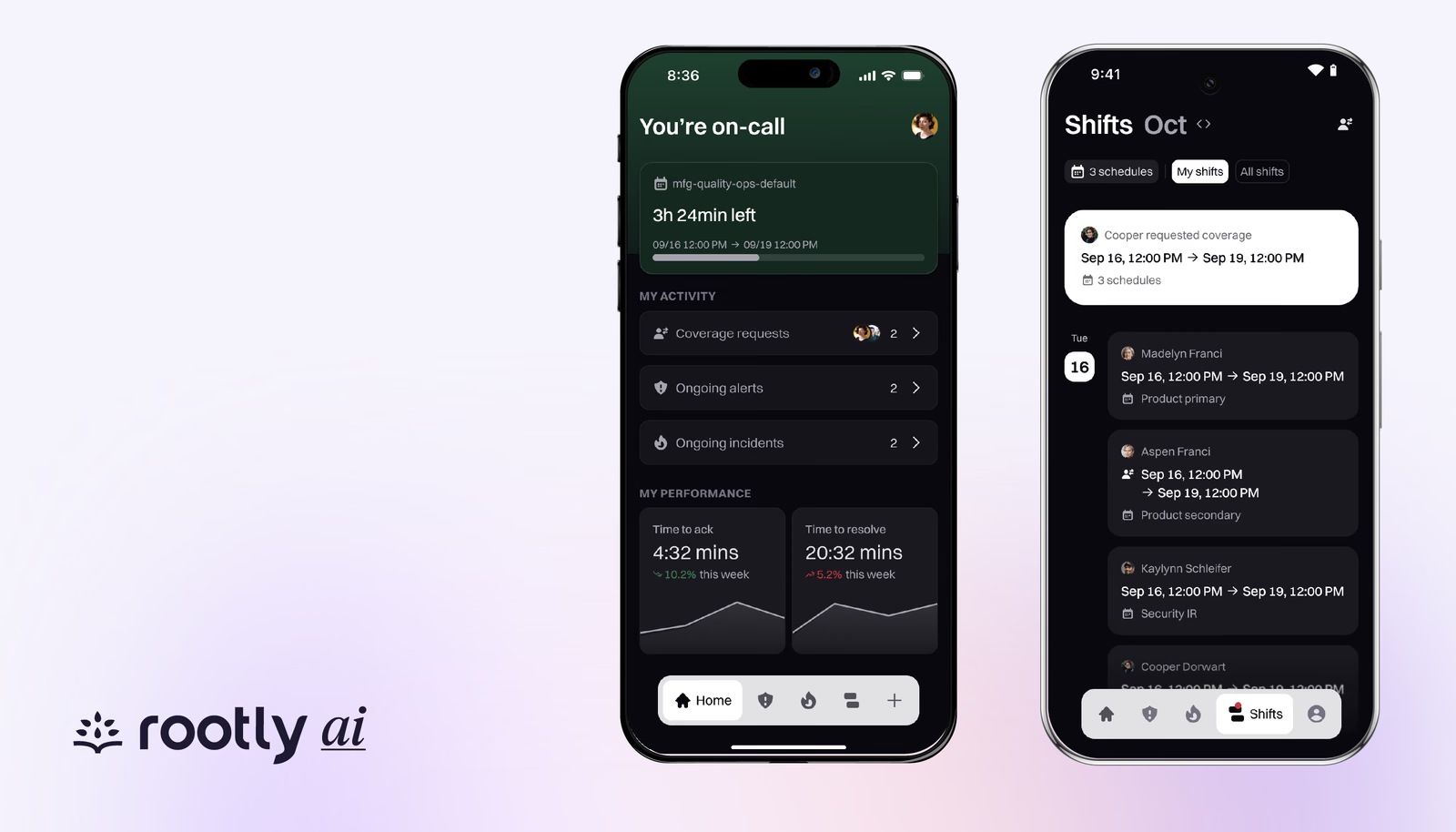
Mobile App Update: Revamped Shifts, New Nav
The latest Rootly mobile update for iOS and Android refreshes Shifts and navigation, with coverage requests you can submit and accept in the app.
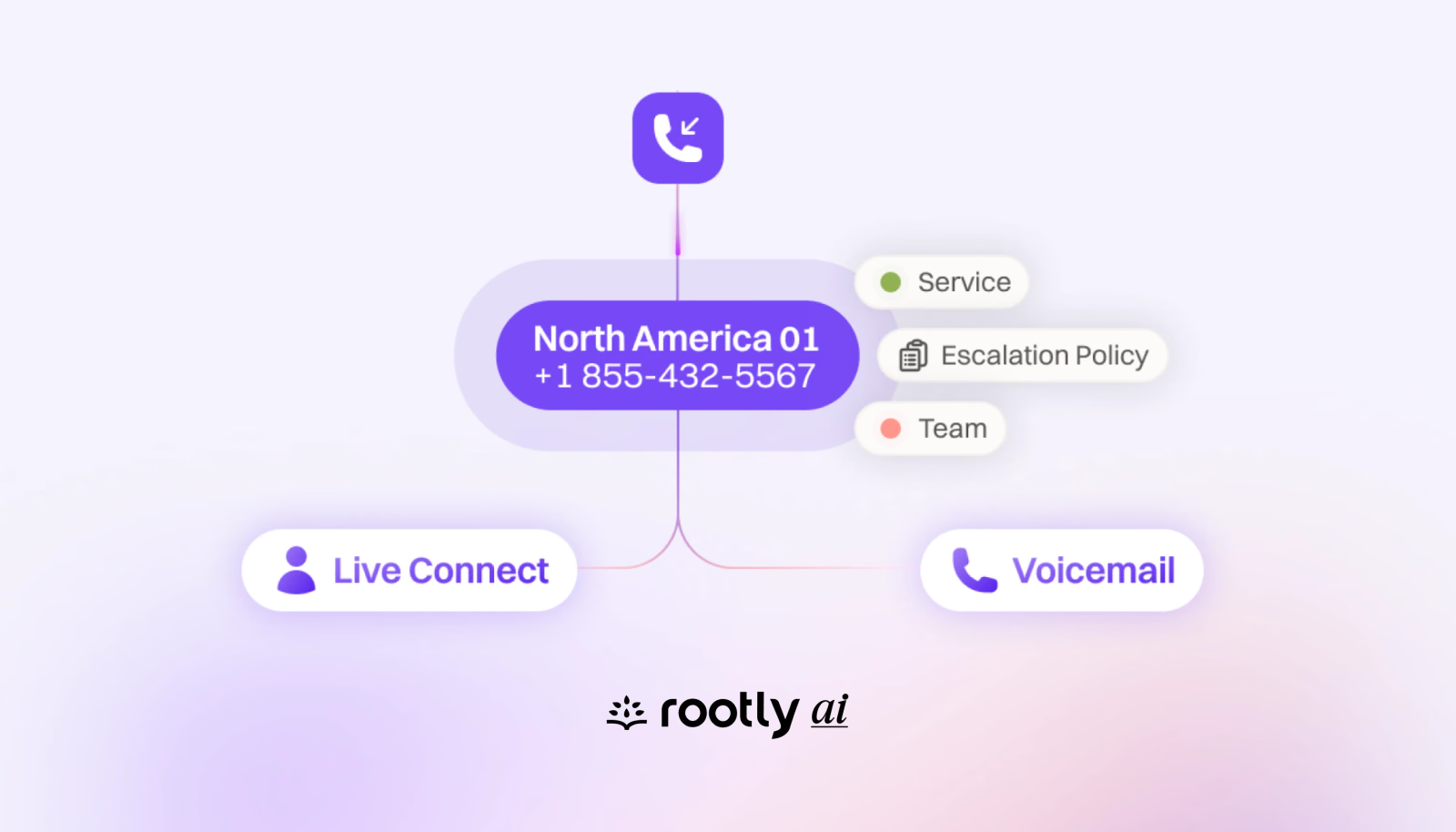
Calling Tree Live Call Routing
Live call routing gives customers and teammates one dedicated phone number that instantly connects them to the engineer on call for urgent issues.