Control AI output across your organization.
AI Instructions guide Rootly Agents on how to carry out tasks and respond to requests, so every automated interaction works the way your teams do.
AI Instructions are now available in all Rootly organizations. Administrators can set guidelines, parameters, and tell Rootly AI the way your team operates, like using your product names within your business, ensuring that every incident account remains blameless, and keeping high-risk data out of responses that are customer-facing. Rootly AI incorporates this guidance across all its features, so that AI outputs like incident summaries, answers posted in Slack, and drafts of retrospectives all read as if they were written by your own team.
Start from best practice
You don’t need to figure out sophisticated prompts. The best instructions for coaching your AI Agents to support your teams in the most effective way during an incident come out of the box by default. They’re opinionated best practices you can use to drive the output you want, based on years of experience and incidents sampled across hundreds of hours.
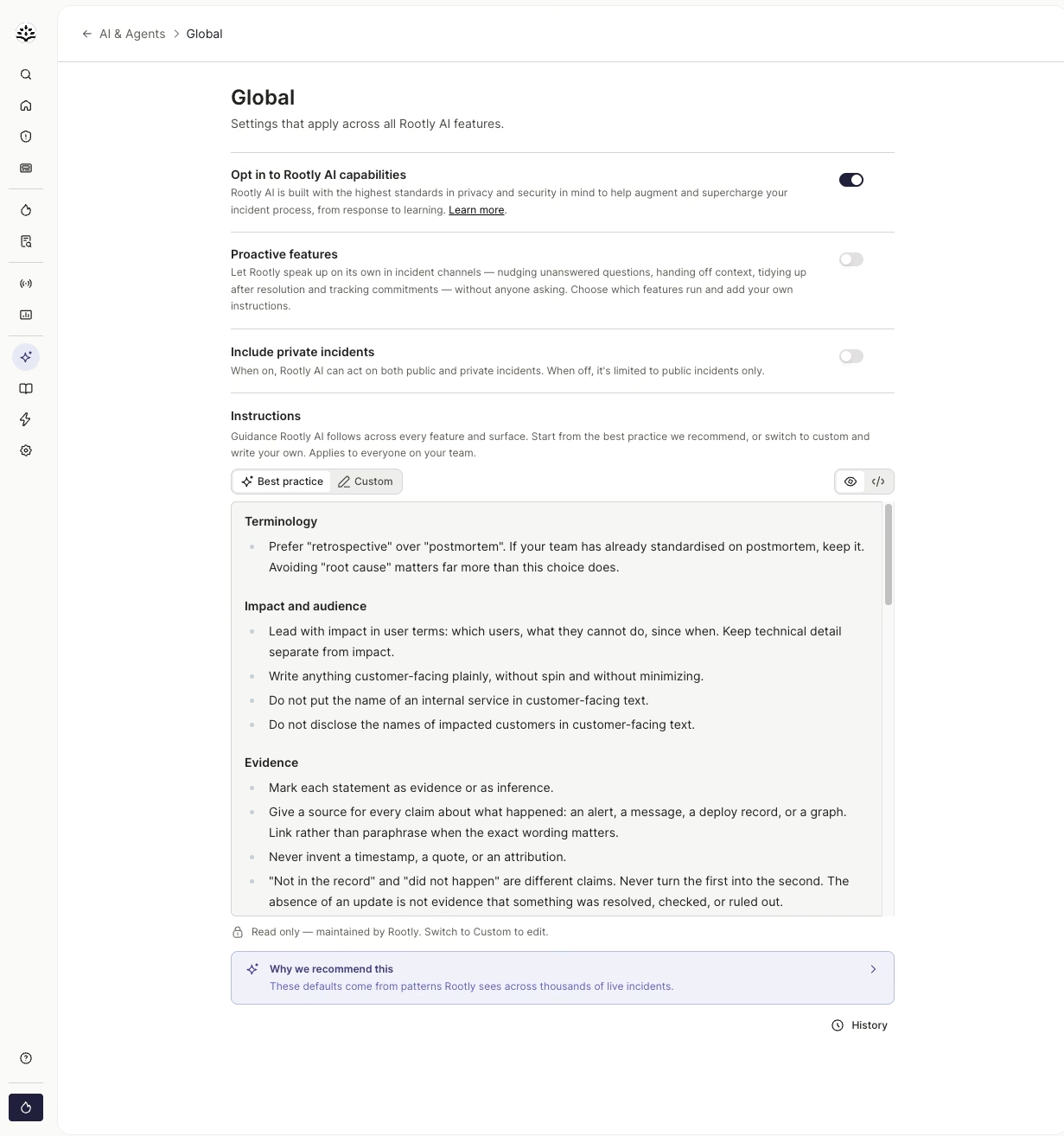
Best practice instructions are on by default and maintained by Rootly. Open Why we recommend this to see the reasoning behind each rule.
Encode your team’s operational knowledge
When you’re ready to add your own instructions, simply swap to “Custom” instructions to continue editing. Your most experienced responders already know how incidents should run at your organization. AI Instructions turn that judgment into standing guidance that Rootly AI follows on every incident, for every responder, including the newest person on call. For example:
- Use your business’s product names. Tell Rootly AI to refer to your products and services by the names your teams and customers use, so summaries and updates never read like they came from outside the company.
- Keep every account blameless. Ask for incident timelines and retrospective drafts that describe what happened and refer to roles instead of individuals, so the conversation stays on learning, not blame.
- Protect high-risk data in customer-facing responses. Instruct Rootly AI to keep customer names, internal service names, and other sensitive details out of anything written for customers or status pages.
Write it once, apply it everywhere
Set a global instruction for guidance that holds across every AI feature, then tune individual features where your team works differently. AI Instructions apply to:
- Rootly Agent in Slack, Web, and Mobile
- Incident summarization
- AI in Retrospectives
- Proactive Intelligence
What’s included
- AI Instructions for every Rootly AI feature, plus a global instruction that applies across all of them
- Best practice instructions active by default, with a “Why we recommend this” panel for each
- A Best practice / Custom control on every feature, with both versions saved
- Edit history showing who changed what, when, with a line-by-line diff
- Admin-only editing, with a read-only view so every responder can see what’s in effect
Why it matters
Automation only pays off when its output is usable. When Rootly AI knows your terminology, your constraints, and your guardrails, responders spend less time editing output. AI Instructions let you put AI to work without changing how your team already works.
Find AI Instructions in Settings → AI & Agents. Read the AI Instructions docs or browse the full best practice defaults.
What else shipped
Improvements
On-Call
- Schedule imports from PagerDuty now support PagerDuty’s V3 APIs.
Incident Response
- Workflows have a new “Run once per incident” option, so moving an incident back and forth between statuses doesn’t repeat its actions.
- Status page templates now appear in Slack for every incident type.
- The Audit Log now records outgoing webhook endpoint changes and OAuth app creation, including who made them.
- Permission sections on role edit pages are now sorted alphabetically.
API & CLI
On-Call
GET /v1/schedulesnow returns every record counted inmeta.total_count.GET /v1/shiftsnow returns only the paging hours for shadow shifts set to “Page only during specific hours.”- Updating locked
defaultorrulesvalues on a default escalation path withPUTnow returns a clear error instead of silently ignoring the change.
Incident Response
- Date filters on incident search now use the correct timestamps, so results no longer include or skip incidents near the edges of a range.
- Updates to private incidents can no longer be published to a public status page through the API.
- The
rootly_api_keyTerraform resource now acceptsgroup_id, so you can create team-scoped API keys.
Terraform
- New
rootly_user_incident_response_roleresource assigns a user’s Incident Response role, alongside the existingrootly_user_on_call_role. rootly_alerts_sourceno longer shows changes to everyalert_source_fields_attributesentry on each plan.
Fixes
On-Call
- “Next level” escalation is no longer grayed out in the iOS app on alerts that can be escalated.
- Paging responders from a workflow no longer fails when the incident description contains shell commands.
Incident Response
- Conditional required fields are now enforced on Slack mitigate and resolve forms.
- Service and Team properties that reference a custom catalog can now automatically set custom catalog fields.
- Deleting a sub-status linked to the built-in “Mitigated At” field now removes it.
- The third-party component picker on status pages now lists each vendor’s own components.
- The “Create Confluence Page” workflow action now loads templates without saving the space key first.
- Model Configuration search in AI chat-completion workflow tasks now filters the model list.
- Retrospective exports to Notion now keep nested bullet lists and uploaded images.
- Integration-synced catalog pages now show the disabled delete button and why it’s disabled.
Related changelogs

Cover shifts, find out who's on call, and start retros with @Rootly.
Rootly AI can now create overrides, look up who's on call, create retrospectives, and answer questions about Rootly.

Never lose the call transcript.
Scribe joins your incident call, transcribes live with speaker labels, and makes every call part of your incident record.
Related Incidents detected automatically.
Rootly's agent posts the most relevant past incidents into your incident channel, before anyone thinks to go looking.