Keep Scribe on every incident call.
Scribe now joins your incident calls every time your team jumps on, so no detail gets lost and you can stay focused on the fix.
Keep Scribe on every incident call.
On this page
Scribe is what lets your team stay focused on the incident itself. It captures every call in full — the decisions, the dead ends, the moment someone spots the fix — so nothing falls through the cracks and no one has to take notes while they work. The latest improvements make that hands-free on Google Meet, Zoom, Microsoft Teams, and Webex: Scribe now gets onto your incident calls on its own and stays there, admitting itself to the bridge and rejoining in one click if the team jumps on later on.
Join automatically, no waiting room
Turn on auto-join and Scribe admits itself to the bridge the moment the call opens, whether your team meets on Google Meet, Zoom, Microsoft Teams, or Webex, so it no longer sits in the lobby waiting for a responder to let it in. Keeping Scribe on every incident bridge means the call is recorded and transcribed for later, and anyone can ask @Rootly for live context without joining the call themselves.
Scribe rejoins when the team jumps back on
Incidents rarely play out in one unbroken call. People drop off, regroup, and jump back on as the picture changes — and when they do, Scribe comes back with them. The later conversation is captured just like the first, so the record stays complete across every round of the incident and nothing discussed falls through the cracks. No one has to remember to bring the notetaker back.
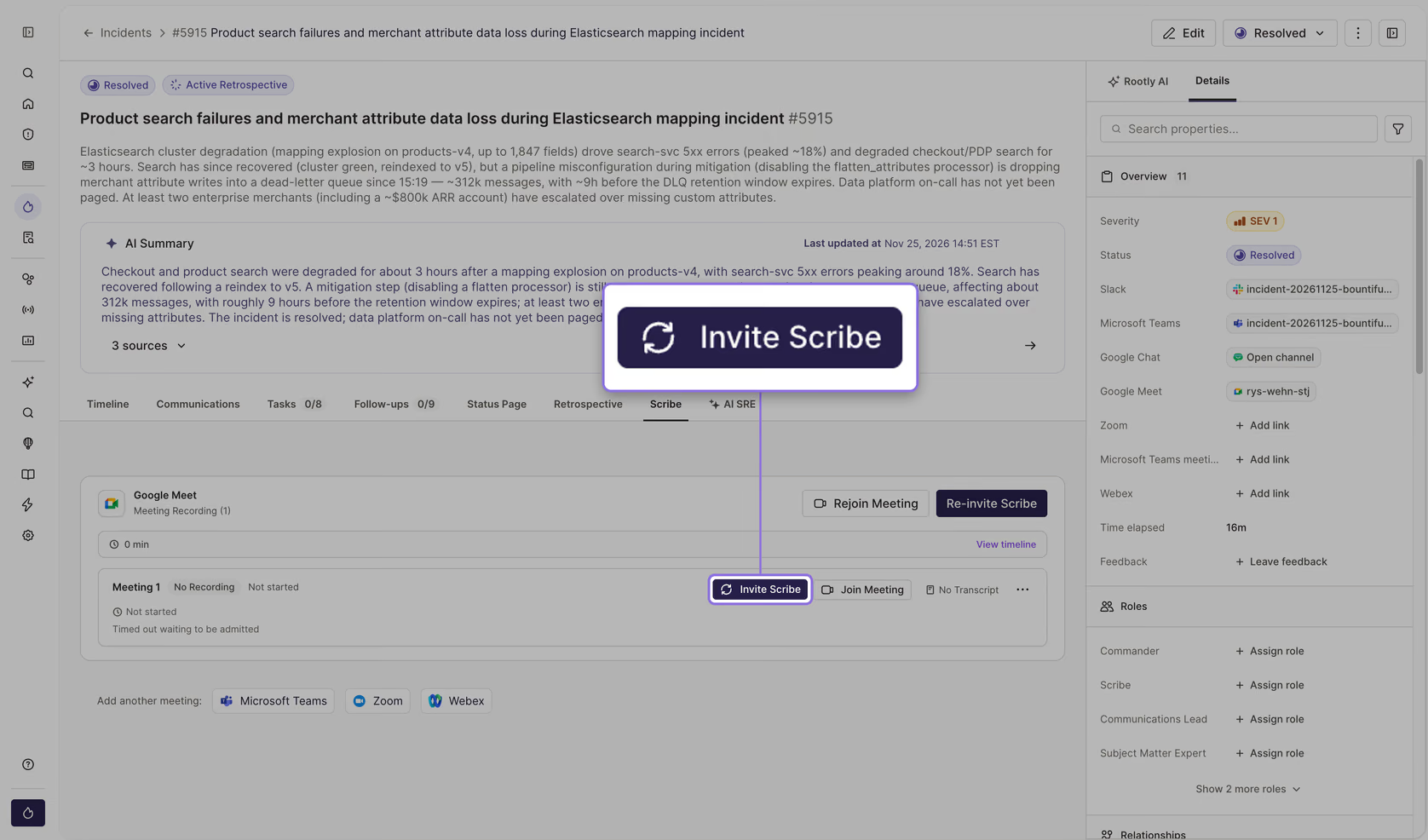
Scribe timed out before anyone let it in? One click on Invite Scribe sends it back into the call.
What’s included
- Automatic join and admit for Google Meet, Zoom, Microsoft Teams, and Webex bridges, so Scribe doesn’t wait in the lobby
- One-click rejoin on all four providers from the incident Slack message or incident page when Scribe drops or times out, through a Rootly redirect (
{{ incident.*_meeting_scribe_join_url }}for custom and Terraform workflows) - Every call shows on the incident’s Scribe tab with its transcript, ready for the timeline, the summary, and @Rootly answers
- One Scribe per incident bridge, to prevent duplicate transcripts and redundant data.
Why it matters
When the notetaker misses the call, the team loses the record of how the incident actually unfolded: the decisions, the dead ends, the moment someone spotted the fix. That record has to be pieced back together later from memory. Keeping Scribe reliably on every call means the transcript is complete, the retrospective starts from what really happened, and responders can put their attention on mitigating the incident instead of minding a bot.
Get started
Connect Google Meet, Zoom, Microsoft Teams, or Webex under AI & Agents → Scribe and turn on Join Automatically. Start with the Meeting Scribe docs.
What else shipped
Improvements
On-Call
- Meeting transcription now runs on a newer speech-to-text model for more accurate transcripts.
- When you create a schedule, you can assign one person to every shift, so covering a multi-day stretch takes one pick instead of one per shift.
- You can now duplicate any schedule or rotation in one click instead of rebuilding it from scratch.
- Live Call Routing can now follow your escalation policy’s timing. Callers hold while each level gets its full time, Rootly rings the current responder again every few minutes, and callers reach voicemail only after the whole policy has run. It’s off by default.
Incident Response
- Status page banners and their update timelines have a refreshed look.
- Status page editors can now sort published incidents and maintenance on the overview.
- Maintenances can now move to In Progress and Completed on their own at their scheduled start and end. Admins turn it on under Settings → Lifecycle → Preferences, and each move still runs your workflows, so Slack maintenance announcements post as usual.
Mobile
- Rootly Mobile 2.18.0 adds an incident timeline tab, and you can post updates and change status, severity, and roles from the incident page.
- You can run bulk actions on incidents and bulk-snooze alerts, and alerts show a ×N badge for duplicate events.
- You can request coverage from specific teammates, and revert an override or cancel a request from the shift sheet.
- You can sign in with your phone’s password manager, and Rootly web links, including schedules, now open in the app.
- Alerts have tappable links, selectable text, and faster loading for large payloads, and swipe actions can ask you to tap to confirm.
- Every error screen now has a retry button, and this release fixes crash, layout, and push notification issues.
MCP
- The MCP server now exposes tools for Rootly’s AI automations and skills, and for creating and listing dashboard panels.
- You can load only the toolsets you need and set read-only access per request.
- The legacy SSE transport has been removed; connect over Streamable HTTP or Code Mode instead.
API & CLI
On-Call
- Live call routers accept a new
escalation_timingsetting to follow escalation policy timing.
Incident Response
- The Audits API now treats a blank
created_atbound as no filter instead of returning an error. - Clearing a team’s broadcast channel through the API now stores and returns an empty object instead of an empty array.
Terraform
rootly_incident_role_tasknow exposesposition, so you can order incident role tasks in Terraform.- The Terraform provider and API reference now cover status page subscriber settings:
allow_email_subscribers,allow_sms_subscribers, andallow_rss_atom_feeds. rootly_workflowtrigger params now returnincident_action_item_group_ids, clearing a permanent diff on import.
Related changelogs
Investigate, coordinate, and respond to incidents in Google Chat with @Rootly.
Incident Response and the Rootly AI Agent are now available for use right in the channels your team already uses: Google Chat.

Investigate, page, and catch up with @Rootly in Microsoft Teams.
Mention @Rootly in Teams to investigate, check recent deploys, page responders, and catch up on the bridge.
Catch up on any incident in seconds with AI Timelines.
AI Timelines pins a live AI summary and the key moments of every incident in Slack, so anyone can catch up in seconds. Now in early access.